Set up and run a basic workflow
Overview
This tutorial will walk you through an example Bottle Rocket use case involving:
- Set up of two connectors (Dropbox and Ollama)
- Running a basic workflow using the connectors
- Set up the workflow to trigger on a matched page symbol
- Triggering the workflow from the mobile app
Prerequisites
- Ensure that your Bottle Rocket server has been correctly set up and configured with the first non-admin user account active.
- Ensure that you have installed and configured the Bottle Rocket mobile app to successfully connect to your running server.
- Follow the steps to set up a Dropbox connector to Bottle Rocket using a free tier Dropbox account (or other Dropbox account you already have).
- Follow the steps to set up an Ollama connector to Bottle Rocket
and pull a compatible OCR model (i.e.
qwen3).
Our workflow
We are going to build a workflow that takes an image capture, and:
- Uploads the image as a file to Dropbox
- Runs OCR on the image using the Ollama connector, converting it to raw text
- Uploads the raw text to Dropbox, as a text file
Steps
Create the workflow
- Login to your Bottle Rocket server.
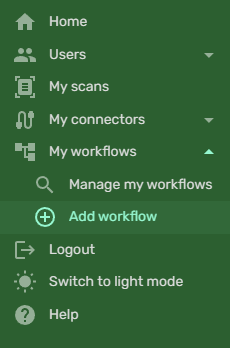
- On the left-hand sidebar, under My workflows, select Add workflow.
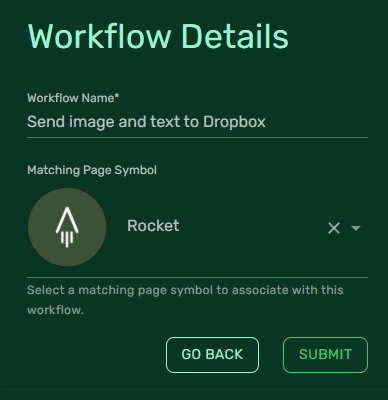
- Name the workflow Send image and text to Dropbox.
- In the Workflow Details page, set the Matching Page Symbol to "Rocket", and click Submit.
Add the Dropbox upload (image) step
- In the workflow editor pane, select the Add New Step button.
- Select the Upload file to Dropbox workflow step.
- Set the Connector to the Dropbox App Connector created earlier.
- Click Submit to save the workflow step. You will be returned to the workflow editor.
Add the Ollama OCR step
- In the workflow editor pane, select the Add New Step button.
- Select the Extract text from image (Ollama) workflow step.
- Set the Connector to the Ollama Connector created earlier.
- Set the Model Name to the name of the OCR model you downloaded earlier (i.e.
qwen3-vl). - Click Submit to save the workflow step. You will be returned to the workflow editor.
Add the Dropbox upload (text) step
- If everything has been correctly set up, your workflow editor should now look like this:
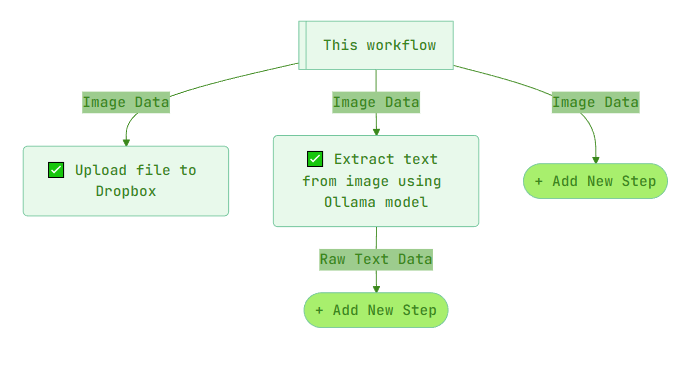
- Select the bottom Add New Step button (extending from the "Extract text from image..." step).
- Select the Upload file to Dropbox workflow step.
- Set the Connector to the Dropbox App Connector created earlier.
- Click Submit to save the workflow step.
- If the step was added correctly, your workflow editor should now look like this:
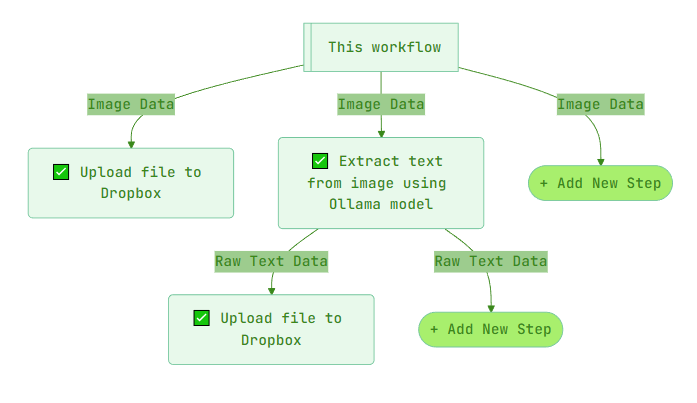
Your workflow is now ready to run / trigger.
Scan an image using the mobile app
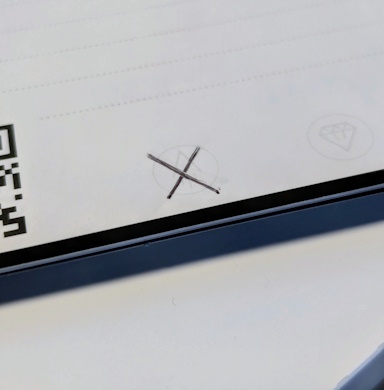
- To test the workflow, take a Rocketbook page and cross out the "Rocket" symbol.
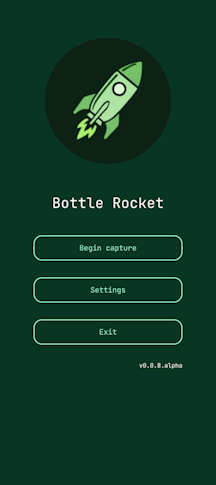
- Open the Bottle Rocket mobile app and select Begin Capture.
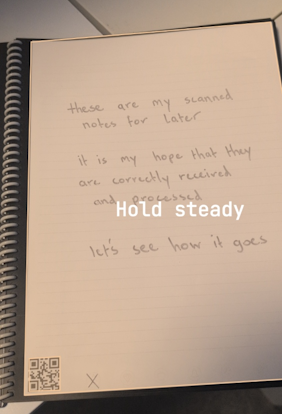
- Follow the on-screen guided prompts to center and hold the image long enough for the capture to complete.
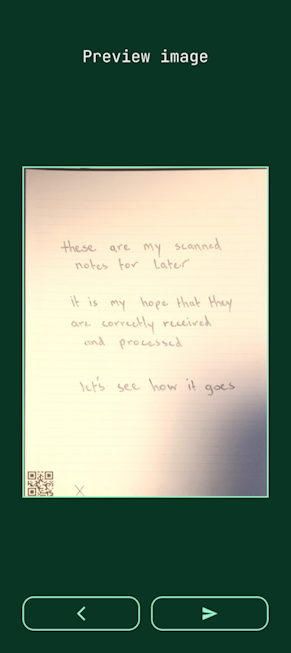
- Once the scan is complete, you should be presented with the scan preview. If you are happy with the image, select the forward / send button (on the right side) to send the image to your Bottle Rocket server.
View the scan
- Login to your Bottle Rocket server.
- On the left-hand sidebar, select My scans.
- Your new capture should be the first scan listed - click on the Details button to view it.
- Under Previous runs, if the page symbol was correctly matched, you should see an entry automatically created.
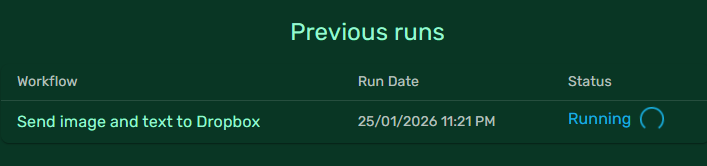
- Click on the row to go to details page for that workflow job run.
- After an interval (OCR can take some time depending on the server capability), the job should be completed if everything has worked correctly.
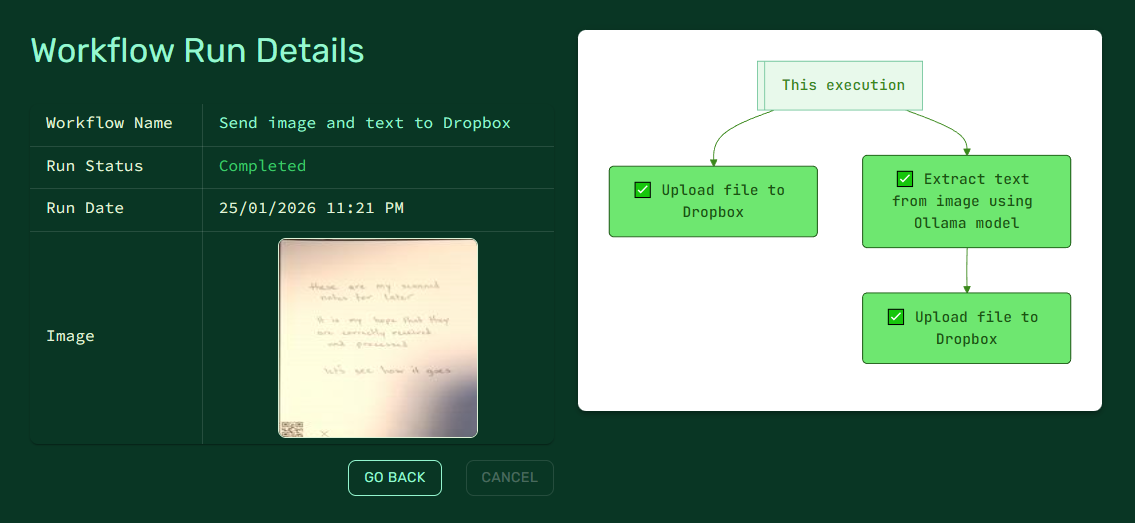
- Click on the Extract text... green workflow step to view the log message for this workflow step. You should see the results of the OCR request and the extracted text it found.
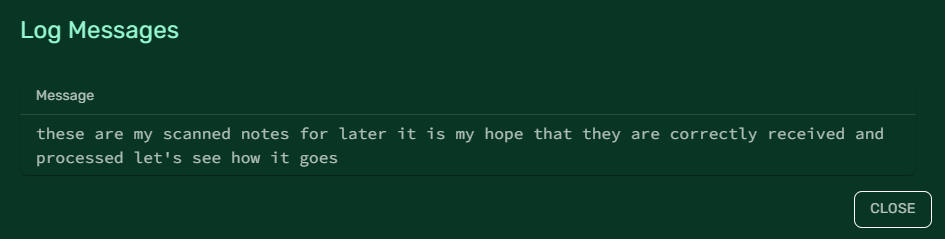
tip
Workflow step failures will also log messages here for inspection.
Verify the results in Dropbox
- Login to your Dropbox account and navigate to the folder you set up for your connector.
- You should see two files in the folder:
- The image file sent in the first workflow step.
- The text file sent in the second workflow step.
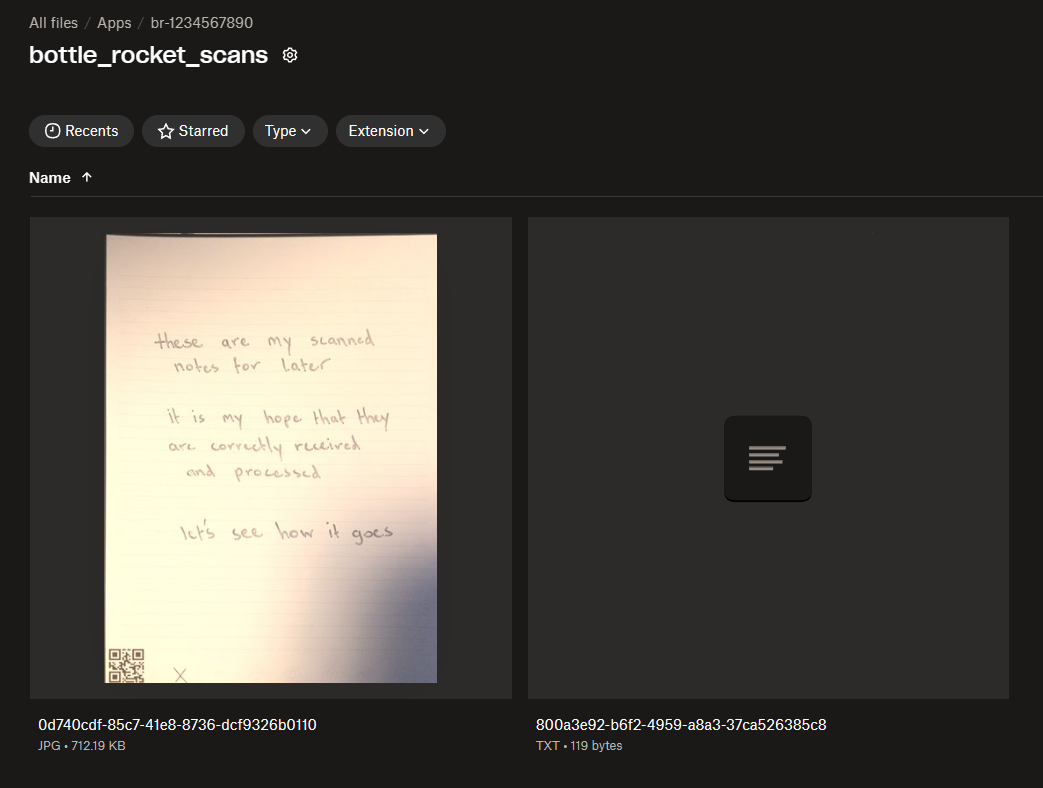
- Click on the text file to view the raw text extracted from the scan.
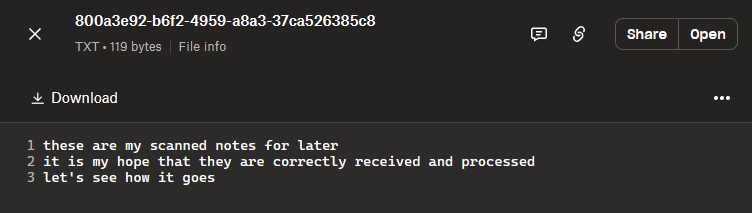
Congratulations - you now have a basic Bottle Rocket workflow running.