Dropbox
Overview
Dropbox is a file hosting service offering cloud storage and file synchronization.
Bottle Rocket can integrate with Dropbox to upload files to a Dropbox account that you have configured.
Prerequisites
- In order to create a Dropbox connector, you will first need to sign up for a Dropbox account.
- You can play around with Dropbox using a Basic / Free pricing tier, at no cost.
Create the "app"
- Login to your Dropbox account through a web browser.
- Once logged in, navigate to the Dropbox apps portal.
- On the left-hand sidebar, under Manage, select Build an app.
- On the developers page, click Create apps.
- You will now be taken to the app wizard.
- Under step 1 - Choose an API, select Scoped access.

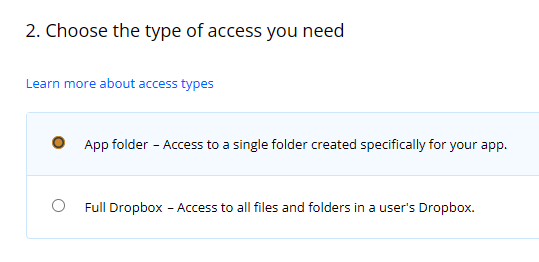
- Under step 2 - Choose the type of access you need, select one of the options.
- You can limit the access Bottle Rocket has to your Dropbox account by selecting App folder.
- For step 3 - Name your app, enter any text you like. This app is limited in scope to only be used by your Bottle Rocket server instance.
The name of the app is not important but it does need to be unique across all Dropbox apps. Thus bottle-rocket or a variant of it may already be taken.

- Click the Create app button to save the app, and you will be redirected to the app dashboard.
The Dropbox app dashboard

- In this section you can see the following properties for your app:
- The Permission type you have defined for the app.
- For Scoped App (App Folder), access, the App folder name will also be displayed.
- The App key and App secret (displayed by clicking the Show button) will be supplied to the Bottle Rocket server to establish a Dropbox connection.
- The Permission type you have defined for the app.
Set the required app permissions
- In the app dashboard, click on the Permissions tab on the top tab bar.

- Ensure the following permissions are selected:
files.content.write
- Click on the Submit button to save the changes.
Add the Dropbox connector to Bottle Rocket
- Login to your Bottle Rocket server.
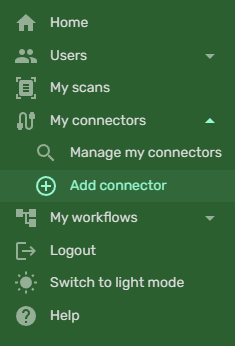
- On the left-hand sidebar, under My connectors, select Add connector.
- Select the Dropbox App Connector from the list of connectors, and click the Add connector button.
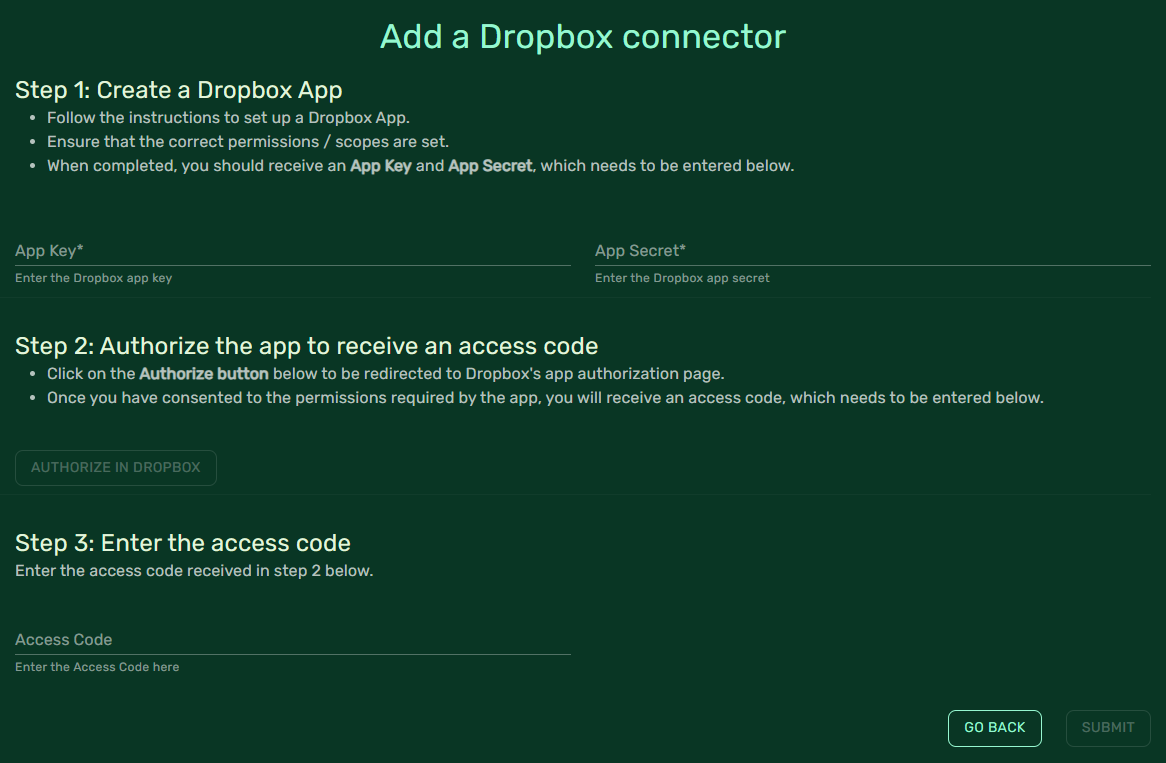
- Enter the App key and App secret you obtained from the Dropbox app dashboard.
- Once these have been entered, the Authorize in Dropbox button will become active; click on it to open a new browser tab that will redirect to the Dropbox authorization URL.
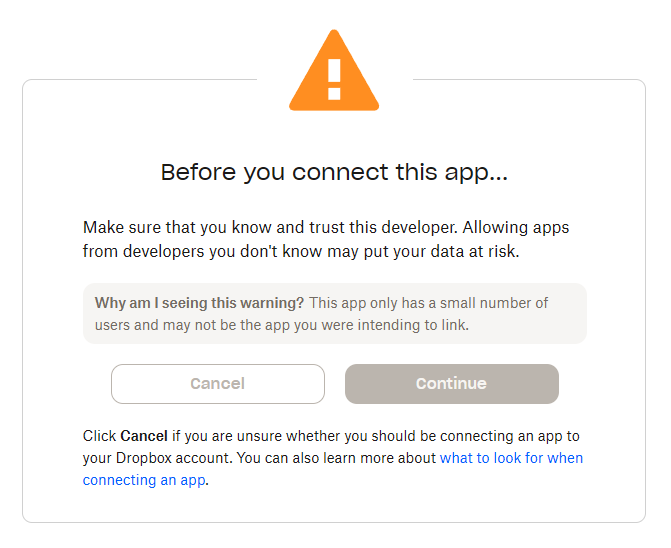
- Dropbox may display a warning about trusting the app - click Continue to proceed.
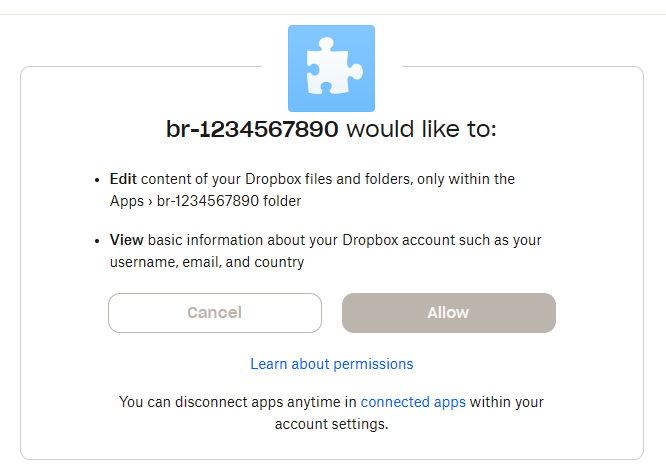
- If everything has been configured correctly, you should see a confirmation dialog from Dropbox, checking that you are allowing this app the listed permissions.
-
The name of the app should match the name you have given it in Step 3 above.
-
The permissions should include viewing basic information, and editing content of Dropbox files and folders.
-
Click the Allow button to confirm the app permissions.
-
The final page will be displayed, giving you the generated access code - copy it to the clipboard.
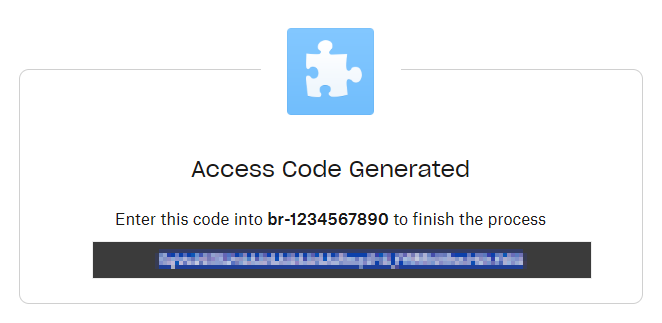
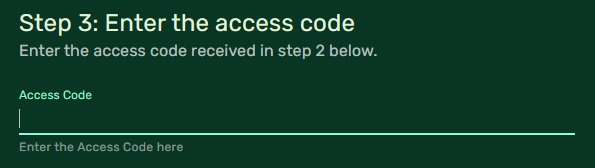
- Going back to the Bottle Rocket Dropbox connector page, paste the copied value into the Access code field.
- Click Submit. If everything has been configured correctly, you should be redirected to the connectors list, indicating that the Dropbox connector is active.
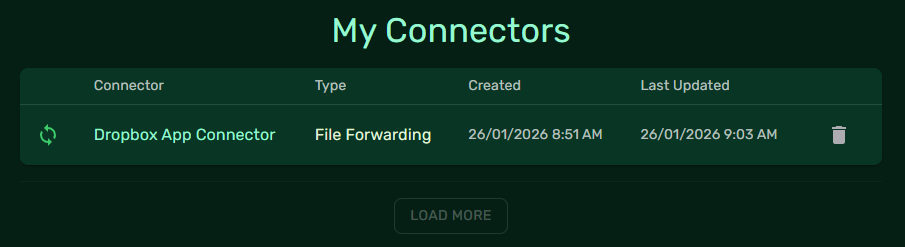
You now have a working Dropbox connector that associated workflow steps can utilize.