Mobile app installation
The following steps outline the installation process for the Bottle Rocket client (mobile app).
The Bottle Rocket app is currently only available on Android.
Play Store (recommended)
You can install the Bottle Rocket app from the Play Store. If you do so, you will require an active Play Store account.
Direct APK installation
If you have enabled direct APK installation on your mobile device, you can download the APK file directly from the Bottle Rocket releases page.
Simply locate the release version you wish to install and select
the app-release-<VERSION>.apk file to download and install.
Setup
You must first configure a running server instance and completed the setup process on it before you can connect to it.
Configure the app to connect to your server
- Open the Bottle Rocket app on your device.
- You should be presented with a main menu / landing screen.
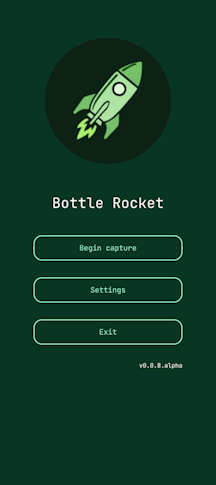
- Tap the Settings option.
- You should be presented with a settings screen.
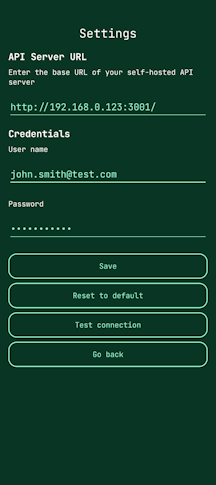
-
Enter the connection configuration as follows:
- The API Server URL should be the URL required for your mobile device to connect to your
(self-hosted) server.
- In cases where the server and device are connected to the same LAN, for example, this URL would be the
local IP address or network host name, followed by the external port number as
configured for the server e.g.
3001.
- In cases where the server and device are connected to the same LAN, for example, this URL would be the
local IP address or network host name, followed by the external port number as
configured for the server e.g.
- The User name should correspond to the user name you configured as part of the setup process.
- The Password should correspond to the password you configured as part of the setup process.
- The API Server URL should be the URL required for your mobile device to connect to your
(self-hosted) server.
-
Use the Test connection button to verify that the connection is working correctly with the supplied credentials.
-
Use the Save button to save the connection configuration.
-
Use the Go back button to return to the main menu (and lose any unsaved changes).
Do not use the root admin credentials here, as certain functionality will not work correctly.
If everything is working correctly and you can successfully test the server connection, then everything should be good to go to start capturing pages into your Bottle Rocket account!