Managing your connectors
Adding a new connector
- Login to your Bottle Rocket server.
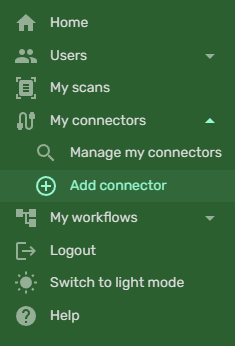
- On the left-hand sidebar, under My connectors, select Add connector.
- You will see a host of various connectors; select the one you want to add and click Add connector.
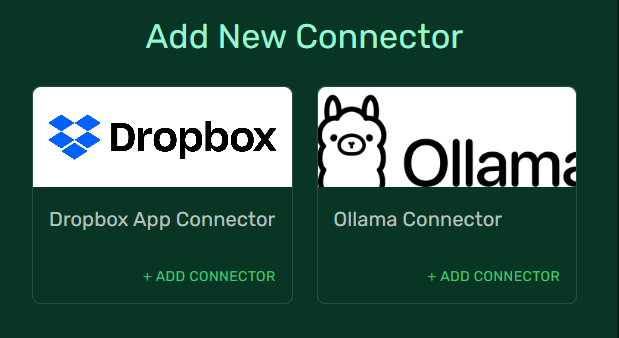
- Each connector will have its own setup instructions:
- To connect with cloud-based services, some may require online authentication through another browser tab.
- Connectors to locally hosted services may require you to install programs or run Docker images on the same server as your Bottle Rocket server, or at least on a server that the Bottle Rocket server can access.
- When you have completed the connector setup, click on the Submit button to save it.
Viewing a list of your connectors
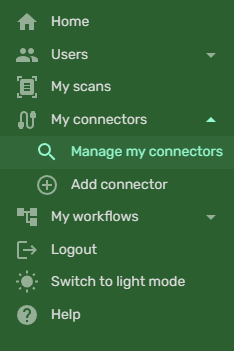
- On the left-hand sidebar, under My connectors, select Manage my connectors.
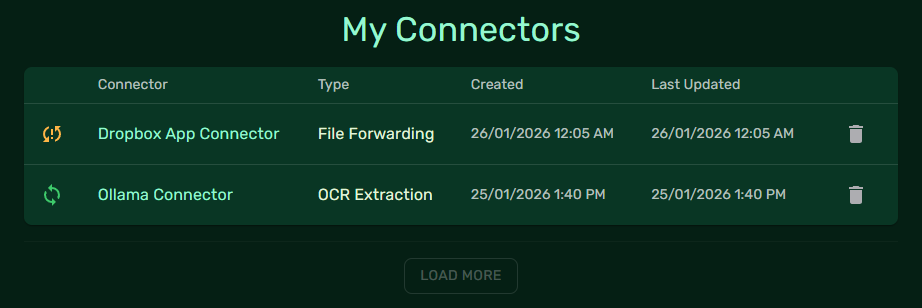
- You will be presented with a list of your connectors and their current connectivity status:
- Connectors with a yellow status icon have issues or warnings that may need to be corrected.
- Connectors with a green status icon are correctly configured.
Deleting a connector
- From this screen, click on the trash icon (on the right-most column) of the connector you wish to delete.
- You will be prompted to confirm the deletion; click Delete to confirm.
warning
Deleting a connector will effectively disable any workflows that use it. To re-enable these workflows, you will need to re-add the connector, then reconfigure the workflow step to use the new connector.